
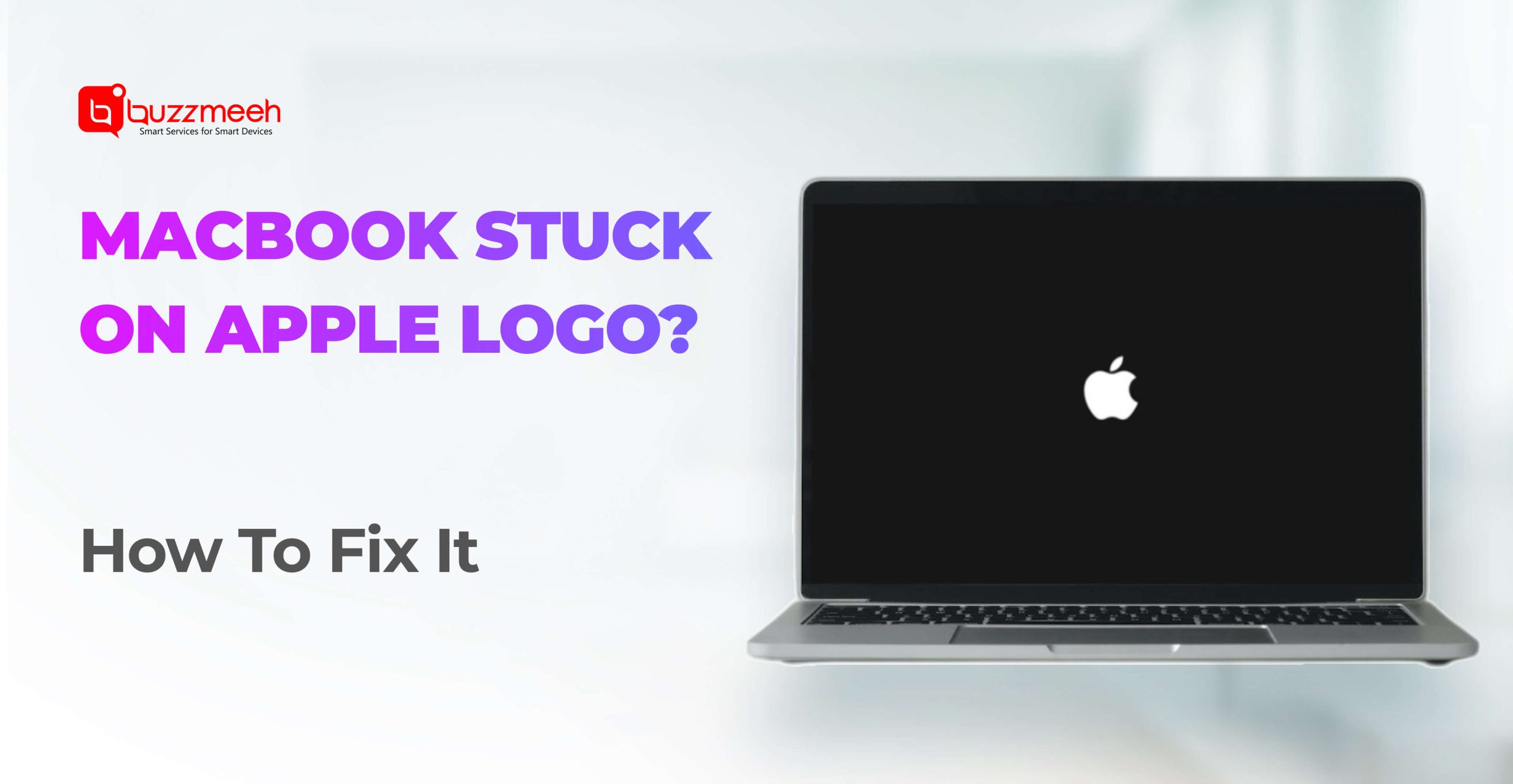
Seeing your MacBook stuck on the Apple logo during startup can be worrying—especially when the progress bar doesn’t move or the screen stays frozen for several minutes. Whether you’re using a MacBook Air or MacBook Pro, this issue usually signals a software conflict, storage problem, or hardware-level fault.
The good news? In many cases, a MacBook stuck on the Apple logo can be fixed without data loss, provided the correct steps are taken early. This guide explains what the Apple logo freeze really means, common causes, and how to fix the problem safely.
Read Also: Why Timely MacBook Repair Saves You from Bigger Bills Later
Quick Answer
A MacBook stuck on the Apple logo usually indicates startup software errors, corrupted macOS files, disk issues, or hardware problems such as SSD or logic board faults. Some issues can be resolved at home, while others require professional diagnosis.
What Does “Stuck on Apple Logo” Actually Mean?
When you power on your MacBook, macOS runs several background checks before loading the desktop. If your MacBook gets stuck on the Apple logo, it means the system fails during one of these startup stages, such as:
- Verifying the startup disk
- Loading macOS system files
- Initializing hardware components
- Checking user login services
The logo itself doesn’t indicate the exact issue—it only signals that startup was interrupted.
Read Also: The Convenience of Doorstep MacBook Air Repair Services: What to Expect
Common Reasons Why a MacBook Gets Stuck on Apple Logo
1. macOS Software Glitch
A failed update, interrupted installation, or incompatible app can prevent macOS from loading properly.
Common signs:
- Issue appeared after an update
- Mac restarts repeatedly
- Progress bar freezes halfway
2. Low or Corrupted Storage
If your startup disk is almost full or has file corruption, macOS may fail to load essential system components.
Symptoms include:
- Extremely slow boot
- Stuck logo without progress bar
- Occasional startup success
3. Disk Errors (SSD or File System Issues)
Internal SSD problems can cause startup failures even if the MacBook was working fine earlier.
Read Also: Is Your MacBook Sluggish or Unresponsive? Repair Tips for Common Issues
4. Peripheral Conflicts
Connected accessories like external drives, hubs, or printers can sometimes interfere with startup.
5. Hardware Issues (Serious Cases)
In advanced cases, the issue may be related to:
- Logic board faults
- Power IC issues
- Failed SSD chips
These usually require professional repair.
Read Also: Spilled Water on Your MacBook? Here’s What to Do Immediately
How to Fix a MacBook Stuck on Apple Logo (Step-by-Step)
Step 1: Disconnect All Accessories
Remove all external devices except the charger and restart your MacBook.
Sometimes a single faulty accessory can block startup.
Step 2: Restart in Safe Mode
Safe Mode loads only essential system files.
How to try Safe Mode:
- Apple Silicon Mac: Hold the power button → Startup Options → Select disk → Hold Shift → Continue in Safe Mode
- Intel Mac: Restart and hold the Shift key
If your Mac boots successfully, the issue is likely software-related.
Step 3: Use macOS Recovery
Restart your Mac and enter Recovery Mode to repair system files.
From Recovery Mode, you can:
- Run Disk Utility (First Aid)
- Reinstall macOS without erasing data
⚠️ Avoid erasing the disk unless advised by a professional.
Step 4: Reset NVRAM / PRAM (Intel Macs)
This can fix boot configuration errors causing the Apple logo freeze.
Step 5: Reinstall macOS
If Disk Utility doesn’t find issues, reinstalling macOS often resolves corrupted system files without deleting personal data.
If your MacBook:
- Remains stuck despite Recovery Mode
- Shuts down randomly during startup
- Shows no progress bar movement at all
…the issue may be hardware-related.
This is where DIY attempts should stop to avoid data loss or further damage.
Read Also: MacBook Trackpad Repair: Effective Solutions for Common Problems
Can This Issue Be Fixed Without Data Loss?
In most cases—yes.
- Software issues rarely erase data
- Disk repairs preserve files
- macOS reinstall keeps user data intact
Data loss risk increases only when:
- SSD hardware fails
- Logic board damage is present
Professional diagnosis helps protect your data.
Why Professional Diagnosis Matters
MacBook startup issues can look identical on the surface but have very different causes. Professional services like Buzzmeeh follow a structured repair flow:
- Software vs hardware isolation
- Disk health testing
- SSD & logic board diagnostics
- Clear explanation before repair approval
- Pickup & drop service for safety and convenience
This avoids unnecessary part replacements and hidden costs.
Read Also: MacBook Not Booting? 7 In-Depth Fixes You Should Try Before Opting for Repair
Should You Keep Restarting a Stuck MacBook?
No.
Repeated forced restarts can:
- Corrupt system files further
- Stress SSD components
- Reduce recovery success rate
If the Apple logo remains stuck after two attempts, move to proper troubleshooting.
Read Also: Is MacBook Repair Worth It or Should You Buy a New One? A Practical Guide
Final Takeaway
A MacBook stuck on the Apple logo is not always a serious problem, but it should never be ignored.
✔ Many cases are caused by software or disk issues
✔ Early fixes can prevent hardware damage
✔ Professional diagnosis improves success rate
✔ Data can often be saved if handled correctly
If your MacBook refuses to move past the Apple logo, the smartest next step is accurate diagnosis—not guesswork.